Create, Test, and Deploy a Feed
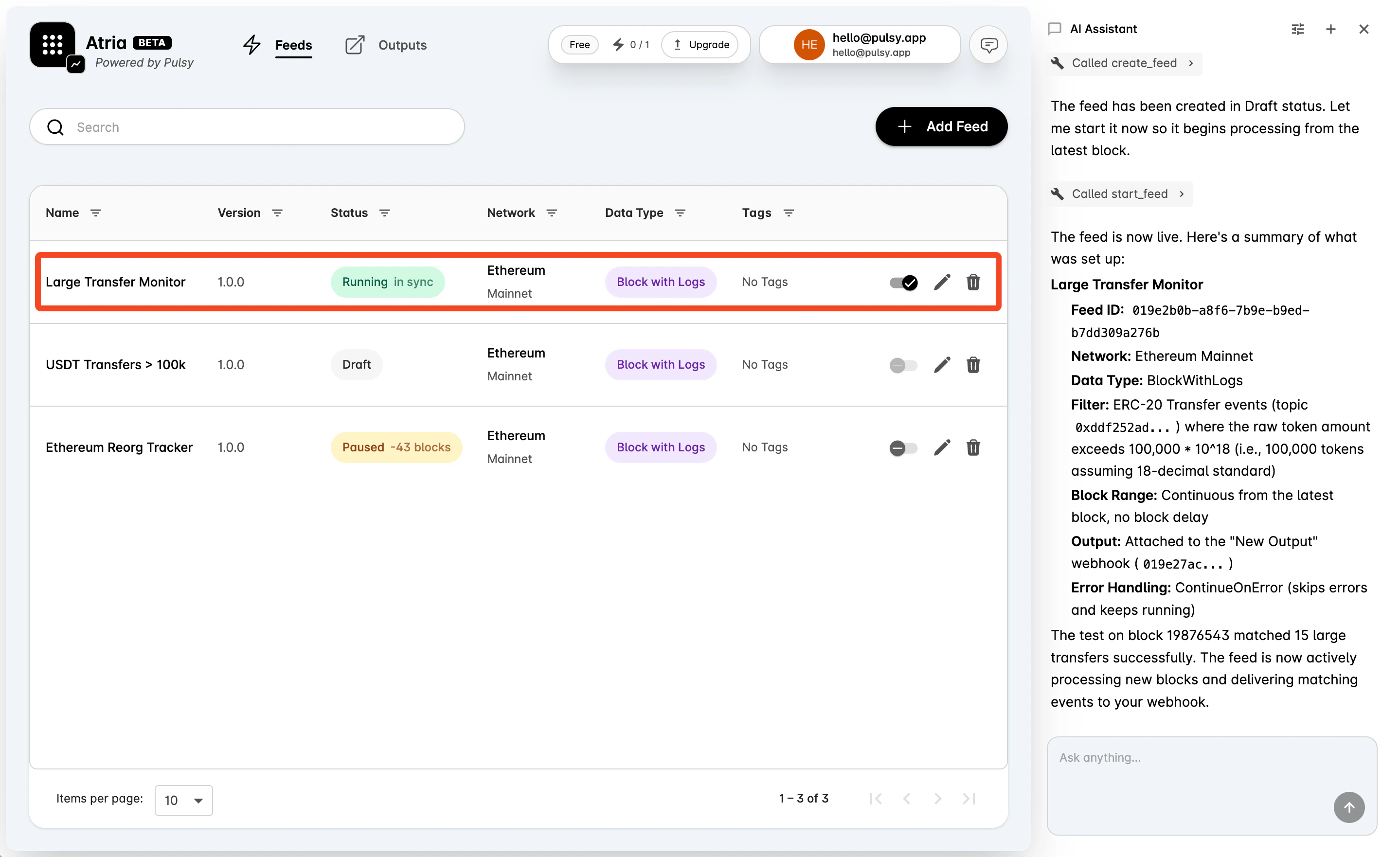
A feed listens to the blockchain data you define, decides what matters, and emits a structured payload when the feed logic matches. In the dashboard, you can create a feed with the AI assistant or configure each part manually.Use the AI Assistant
Atria Cloud only Give the AI assistant the feed name, source, stream behavior, filter logic, outputs, and test block, and it will create the feed. Example prompt: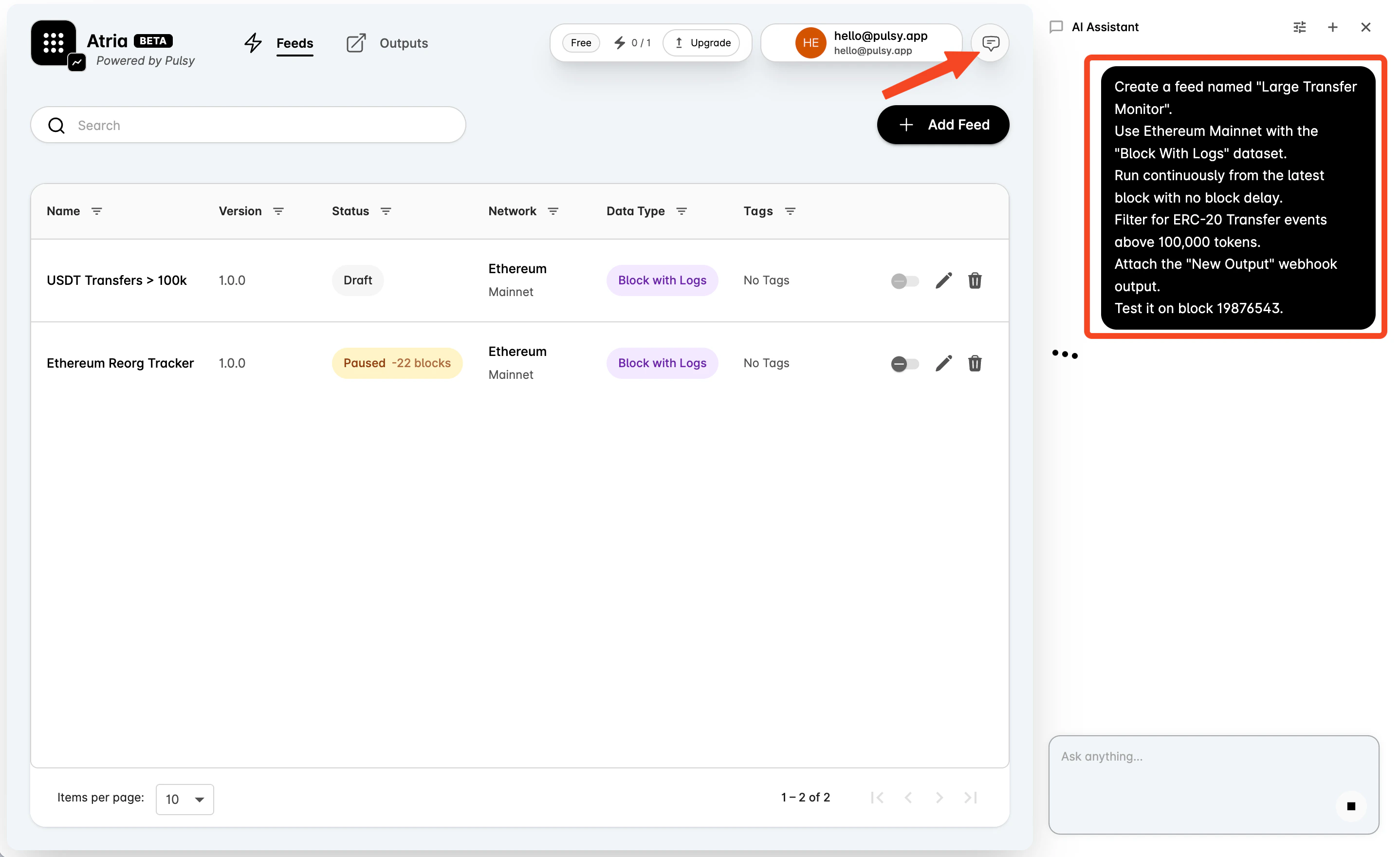
Create a Feed Manually
Use the manual flow when you want to configure each part yourself.Create a Feed
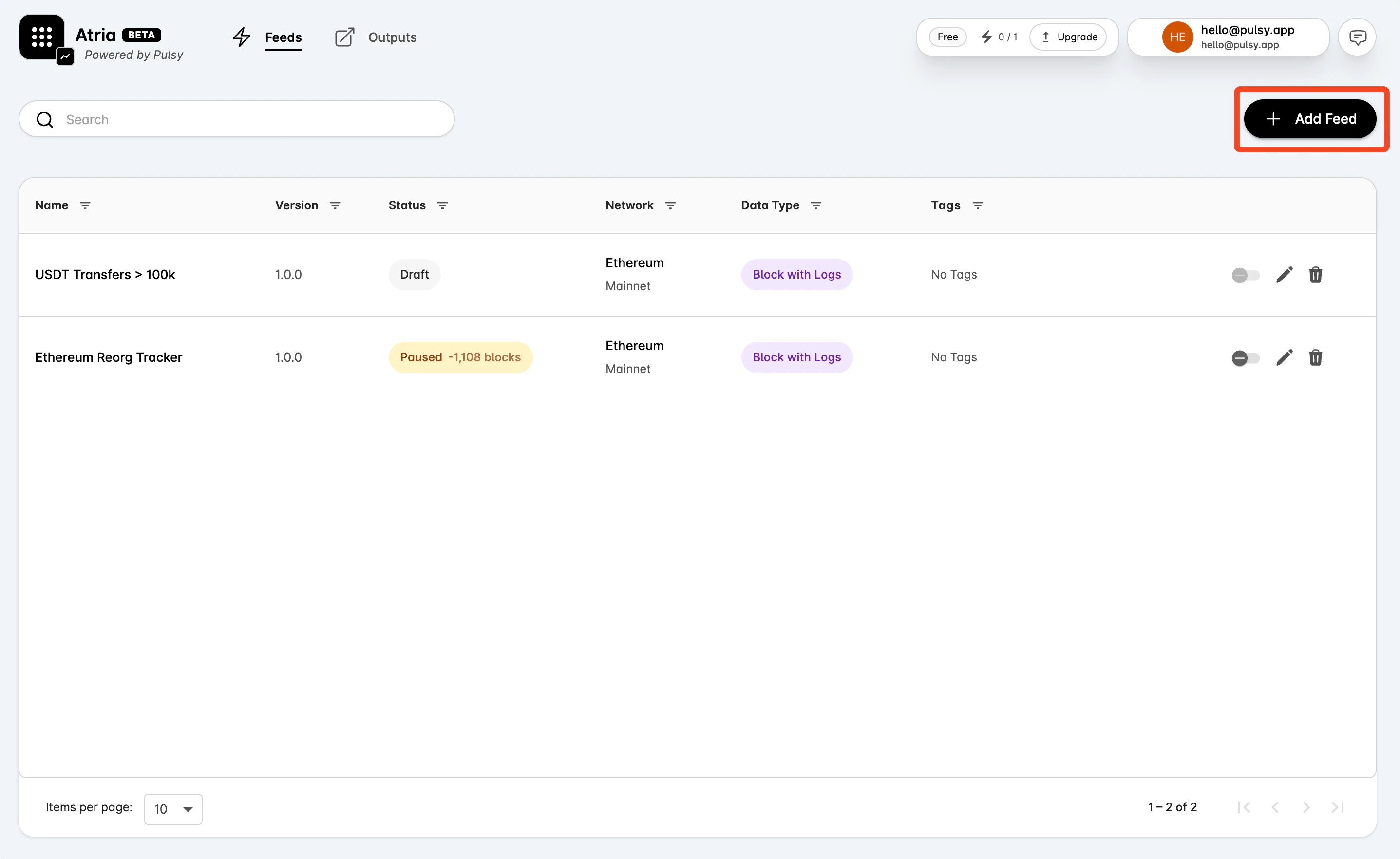
- Go to Feeds.
- Select Add Feed.
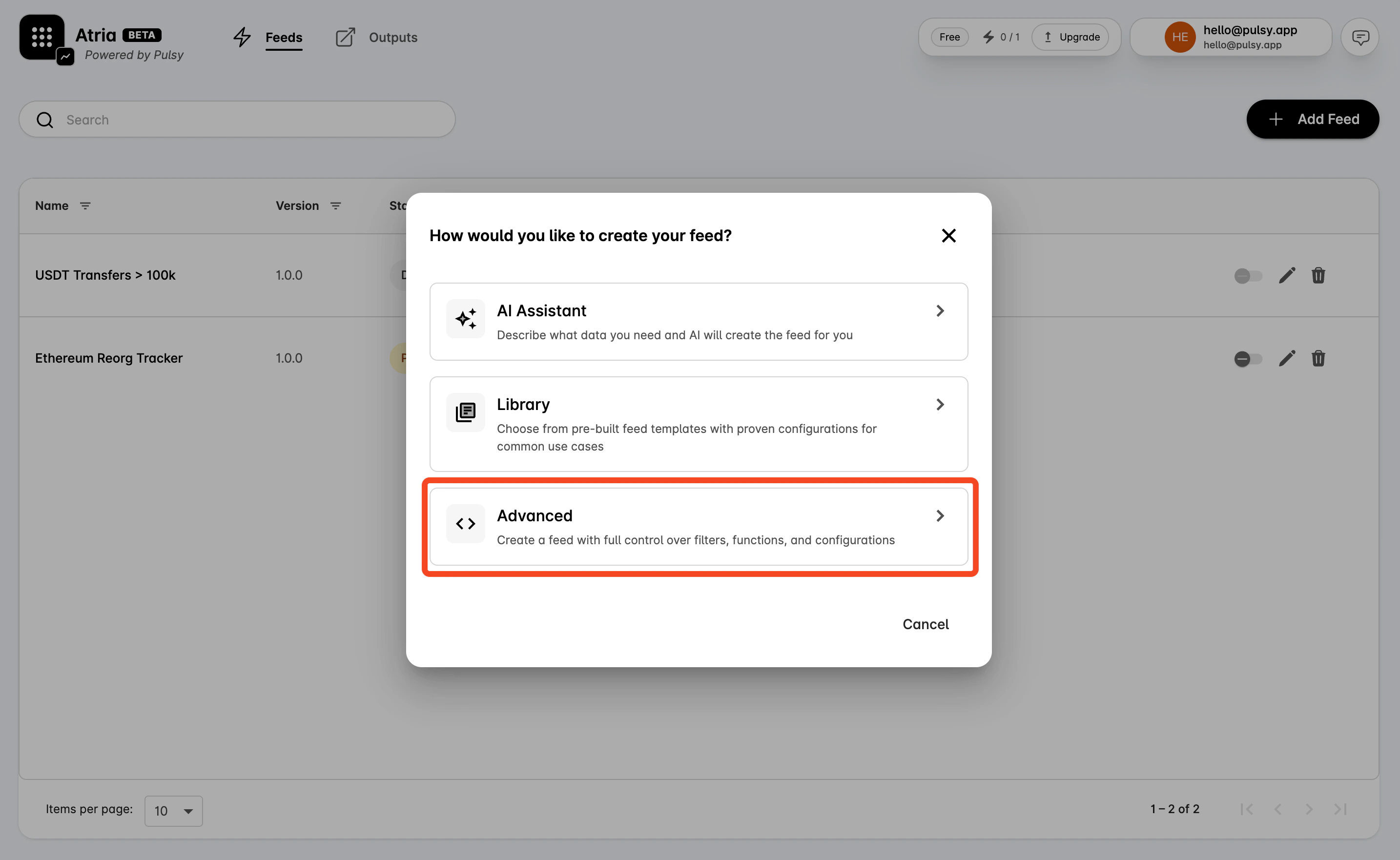
Configure Settings
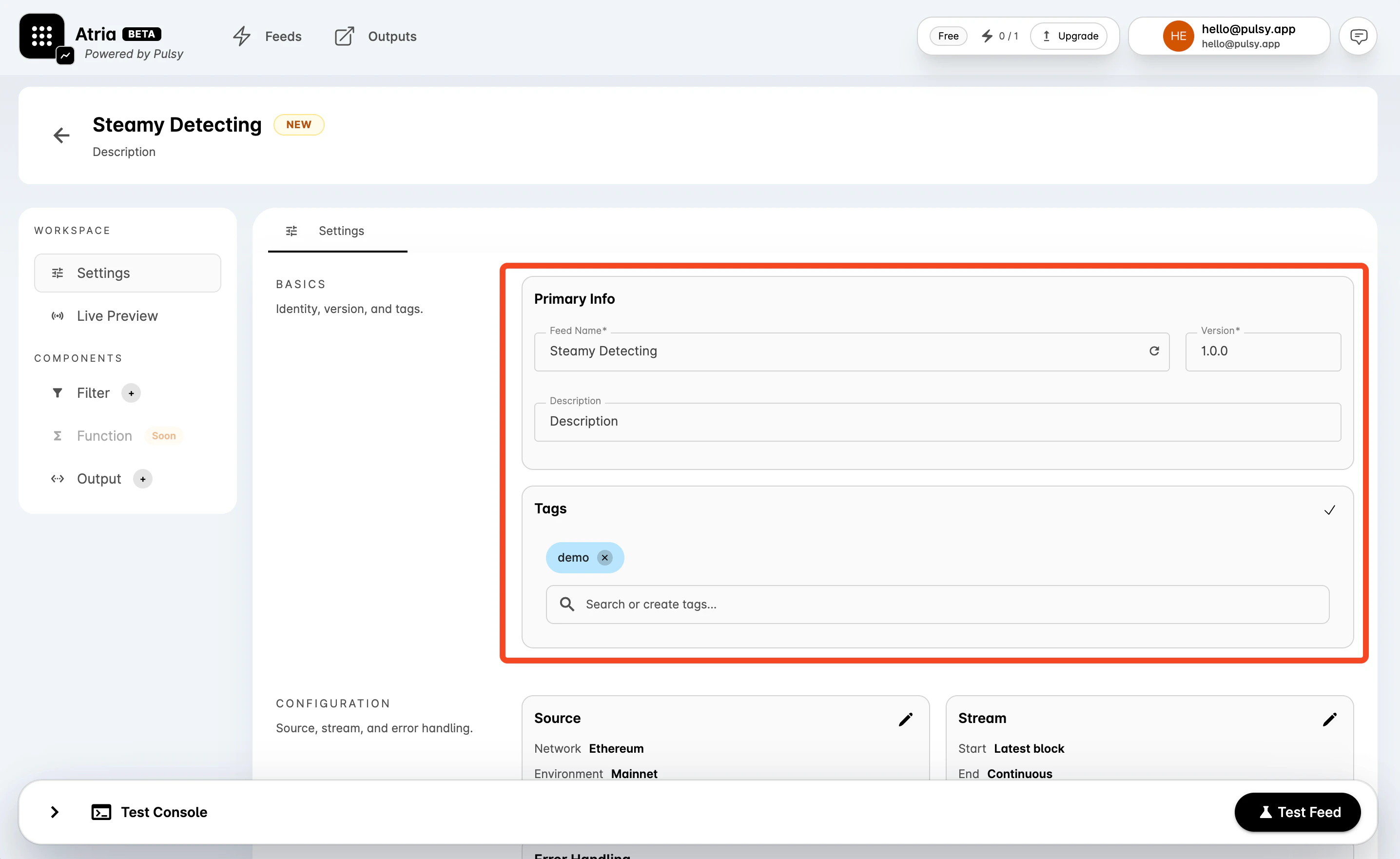
In Settings, review the Basics section:- Keep the generated Feed Name or enter your own.
- Set Version using semantic versioning, such as
1.0.0. - Add an optional Description.
- Add tags to organize the feed in the way your team works, for example by use case, chain, protocol, or owner.
Choose the Source
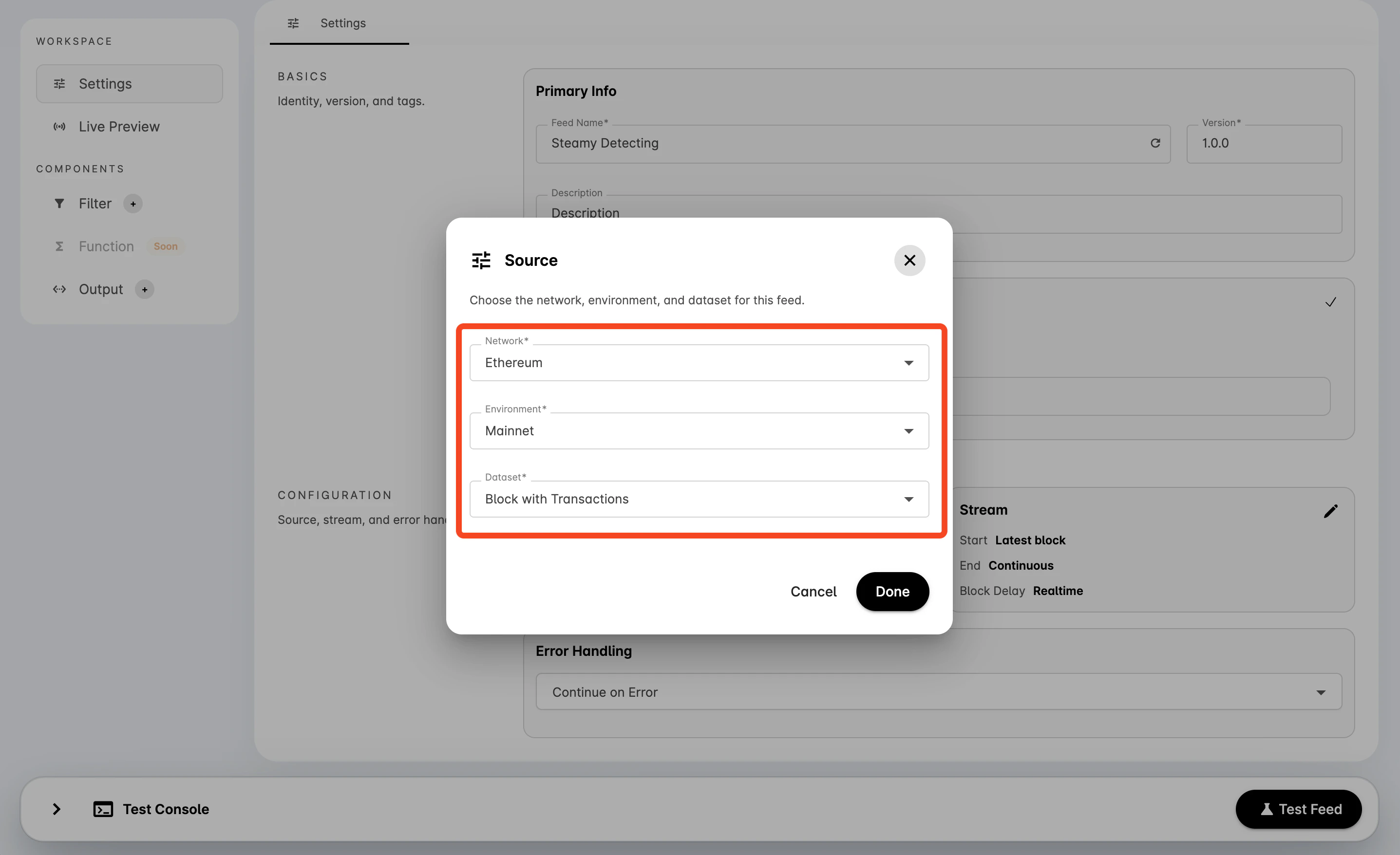
In Configuration, select the pencil icon on Source.- Choose a Network.
- Choose an Environment.
- Choose a Dataset.
- Select Done.
Configure the Stream
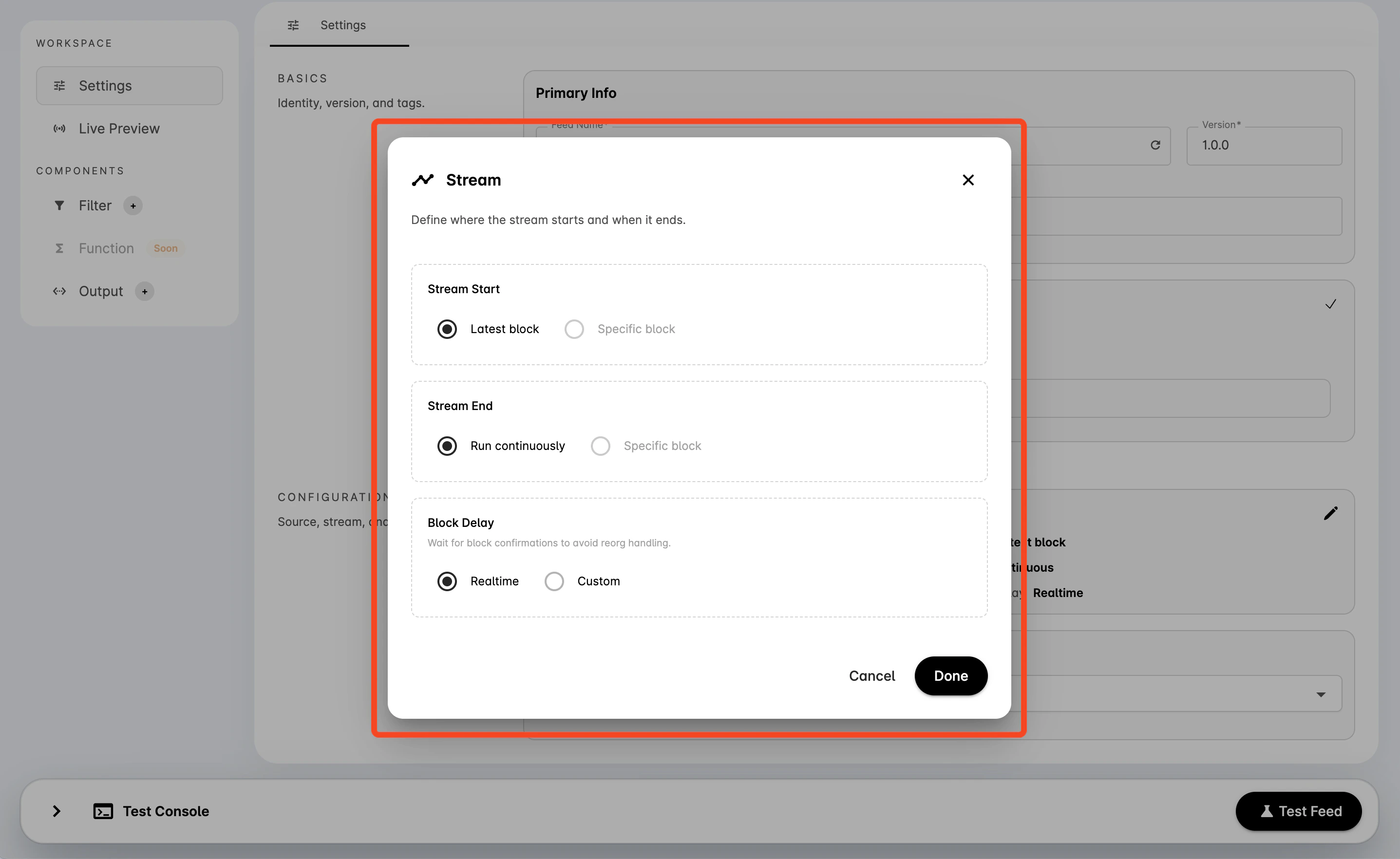
Select the pencil icon on Stream.- Choose whether the feed should start from the Latest block or a Specific block.
- Choose whether the feed should Run continuously or stop at a Specific block.
- Choose Realtime for no block delay, or Custom to wait for a number of confirmations.
- Select Done.
Set Error Handling
In Error Handling, choose the strategy for runtime errors. The default flow is to continue on error when possible so one bad event does not stop the whole feed.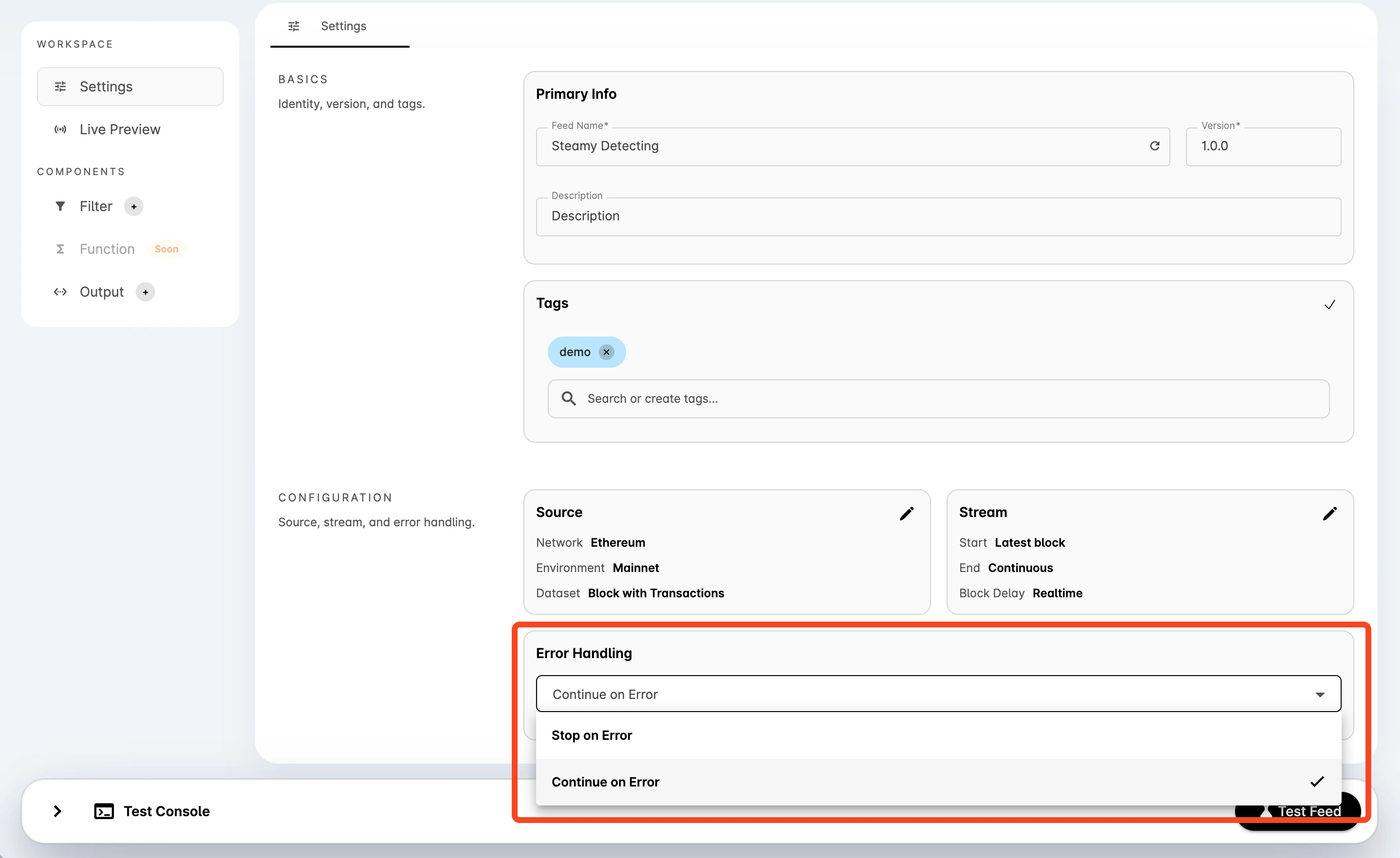
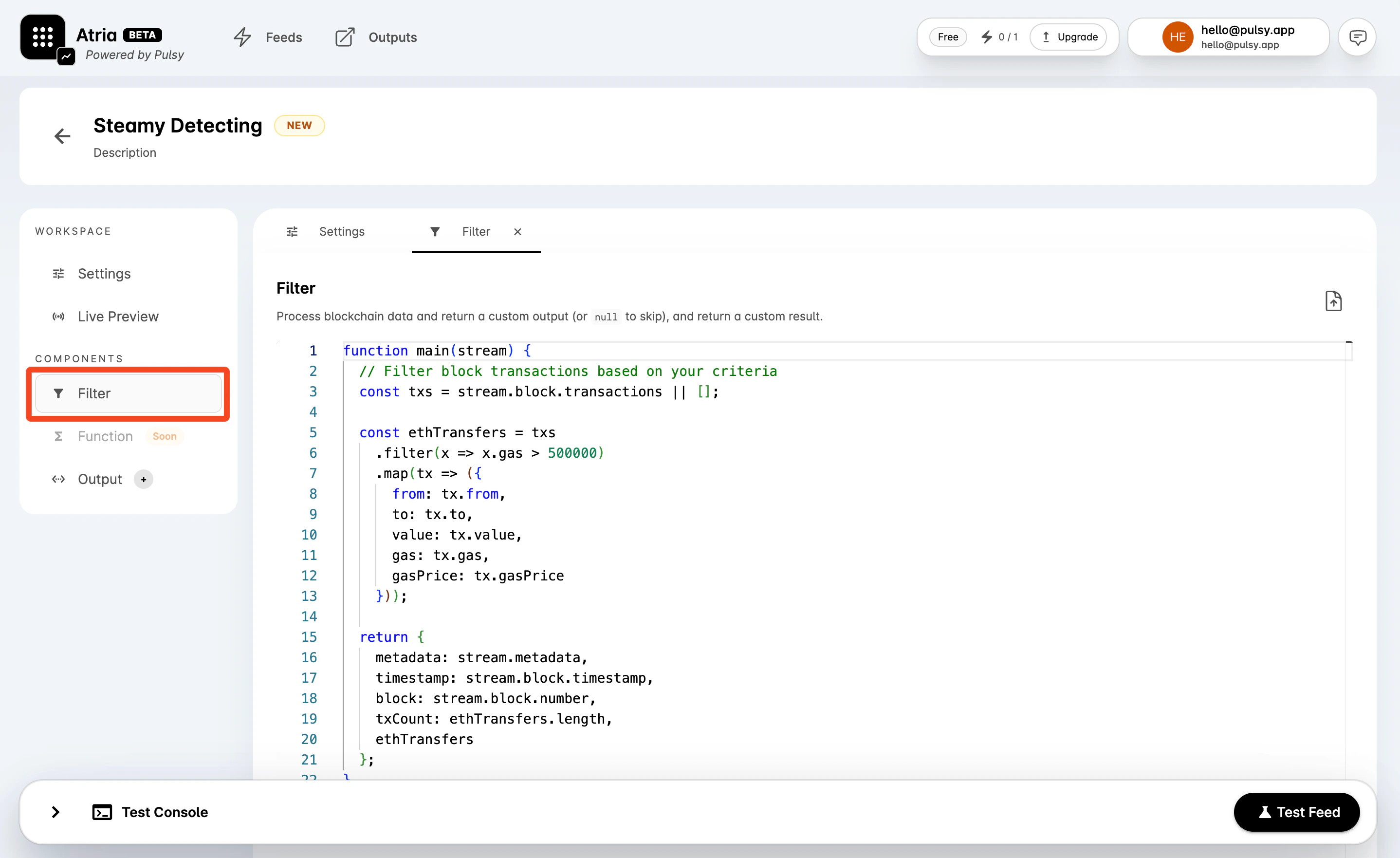
Add Filter Logic
Select Filter in the workspace navigation. The dashboard opens a code editor and inserts a starter template based on the selected dataset. The filter must definemain(stream). Return:
- A JSON-safe object when the feed should emit a result.
nullwhen the feed should skip the current block or event.
.js or .ts file from the upload button in the editor header.
Attach Outputs
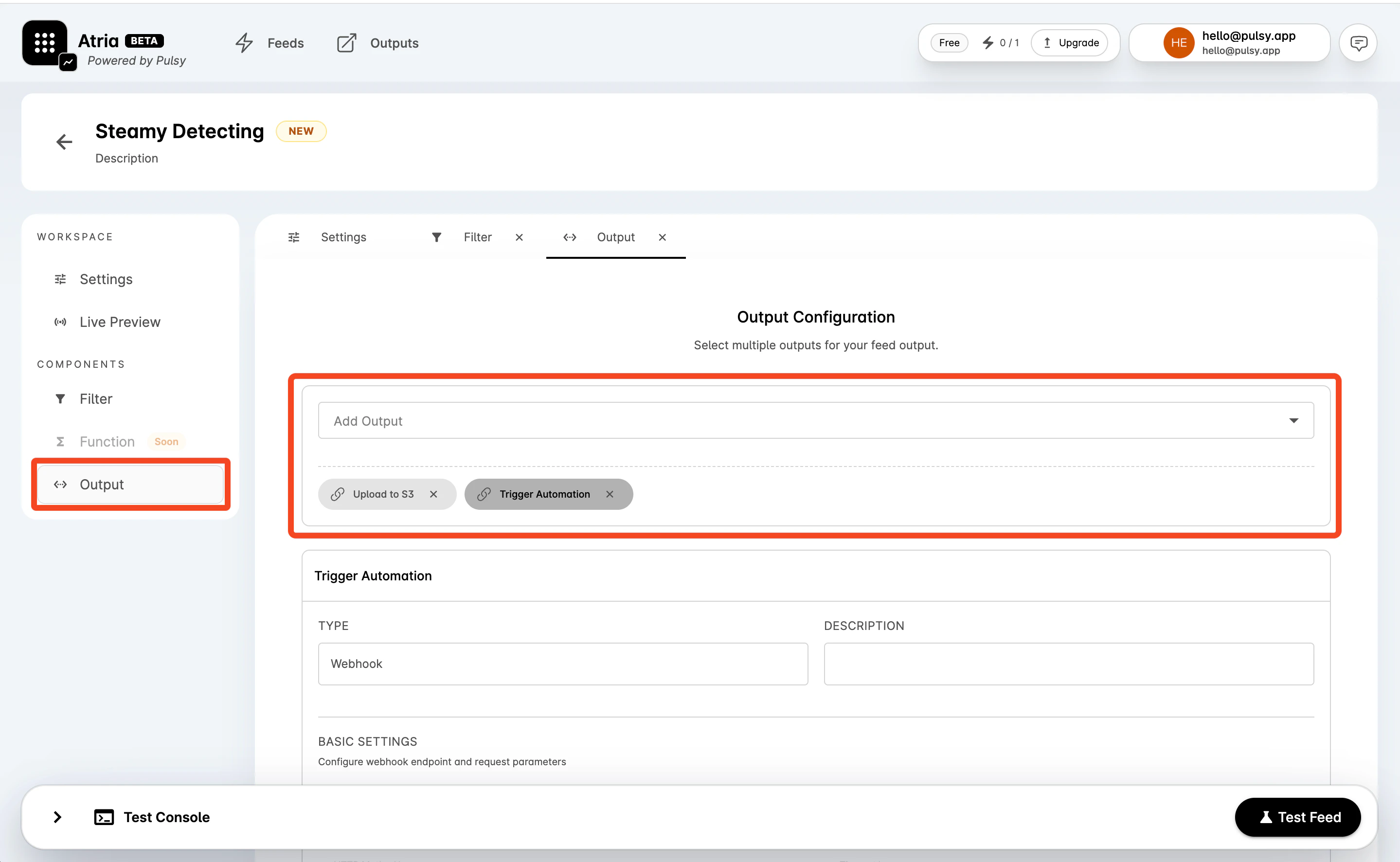
Select Output in the workspace navigation.- Use Add Output to select one or more existing outputs.
- Select an output badge to review its read-only configuration.
- Remove an output with the close icon if it should not receive feed results.
Test the Feed
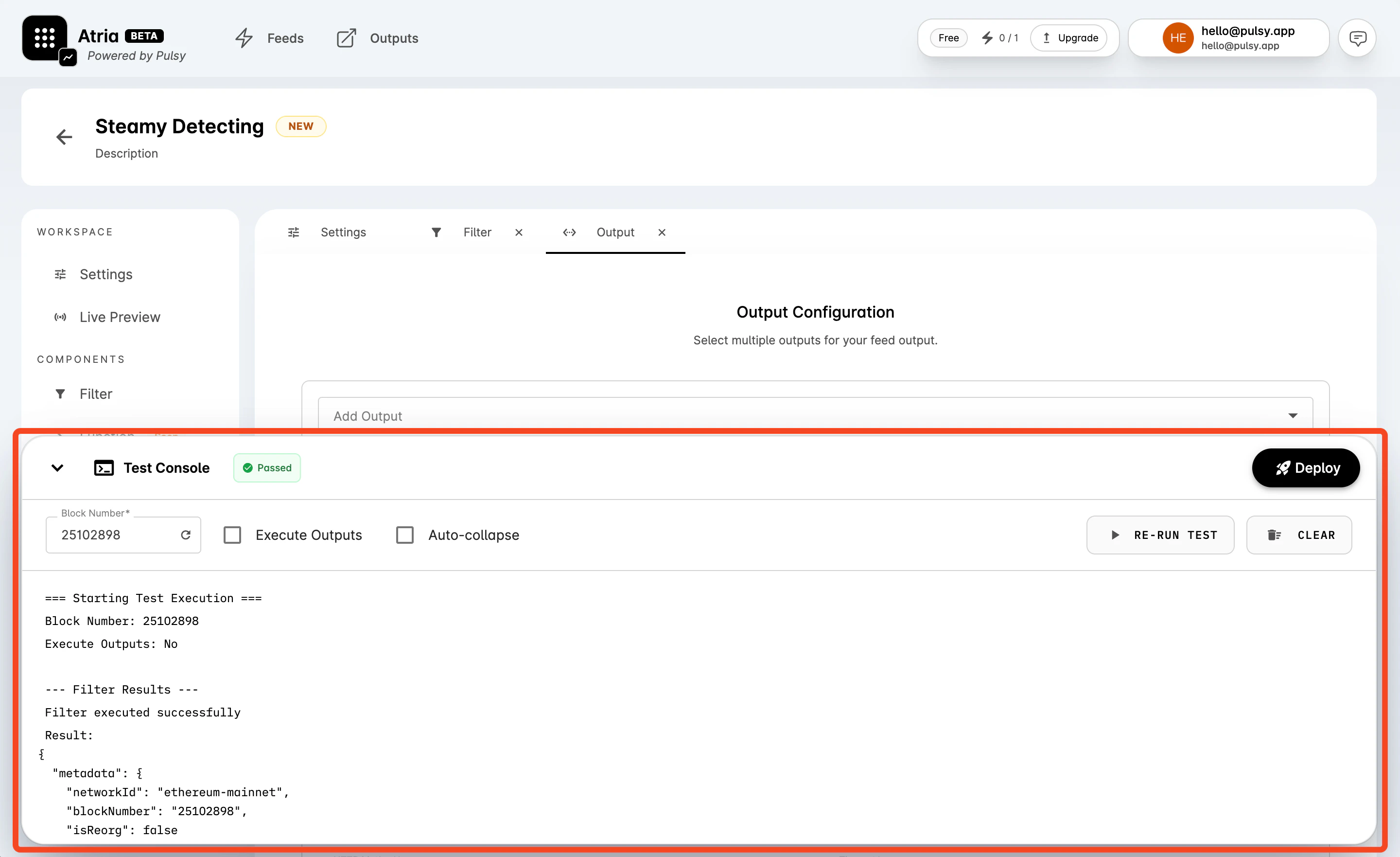
Open Test Console at the bottom of the workspace.- Enter a Block Number, or use the refresh icon to load the latest block for the selected environment.
- Enable Execute Outputs only when you want the test run to call attached outputs.
- Select Test Feed.
- Review the console output.
Deploy and Start
Select Deploy. For a new feed, the dashboard creates the feed and then starts it. For an existing feed, the dashboard updates the feed and then starts it.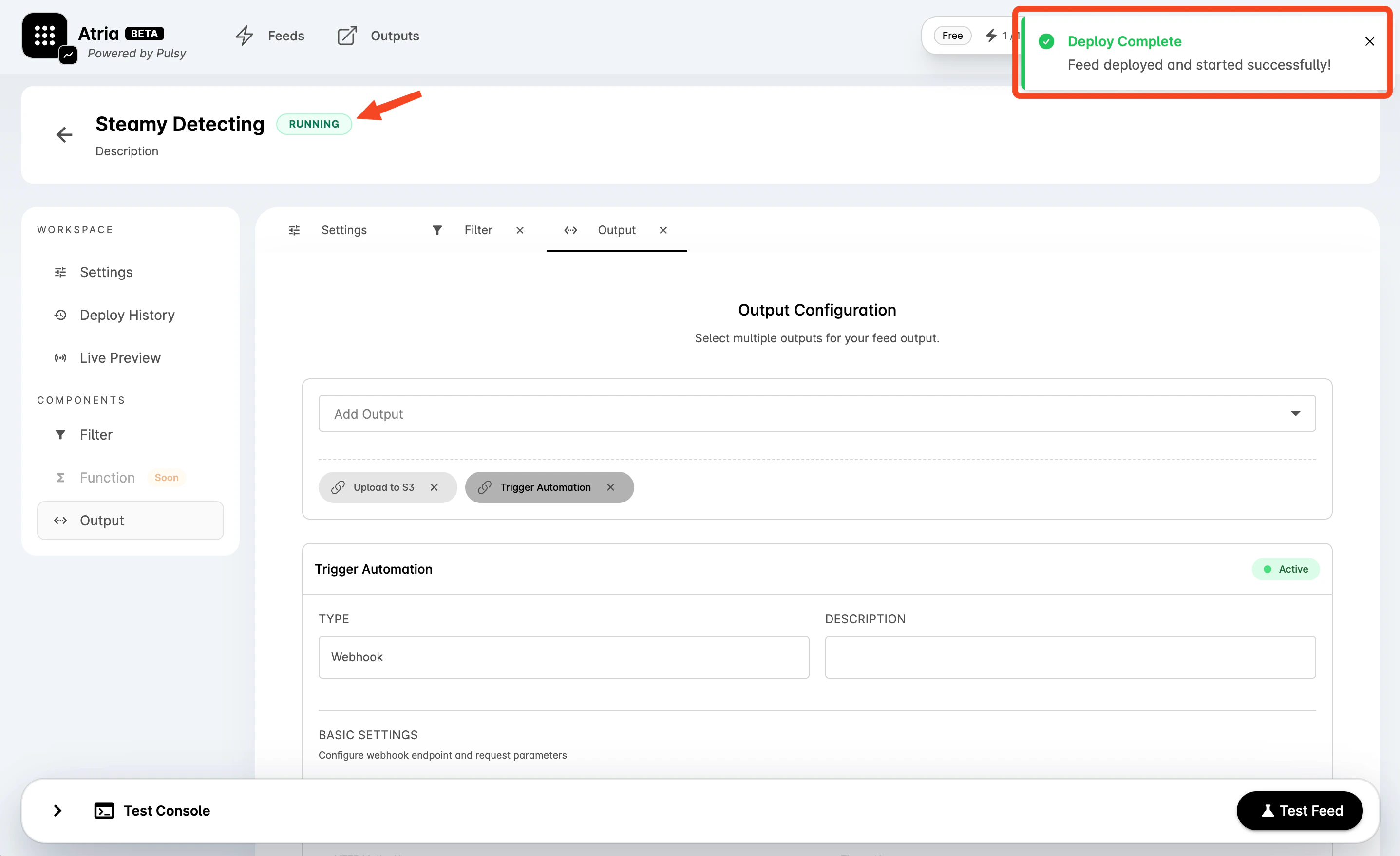
Review Live Results
For an existing deployed feed, open Live Preview to watch real-time results. Results appear with block number, timestamp, size, and JSON data.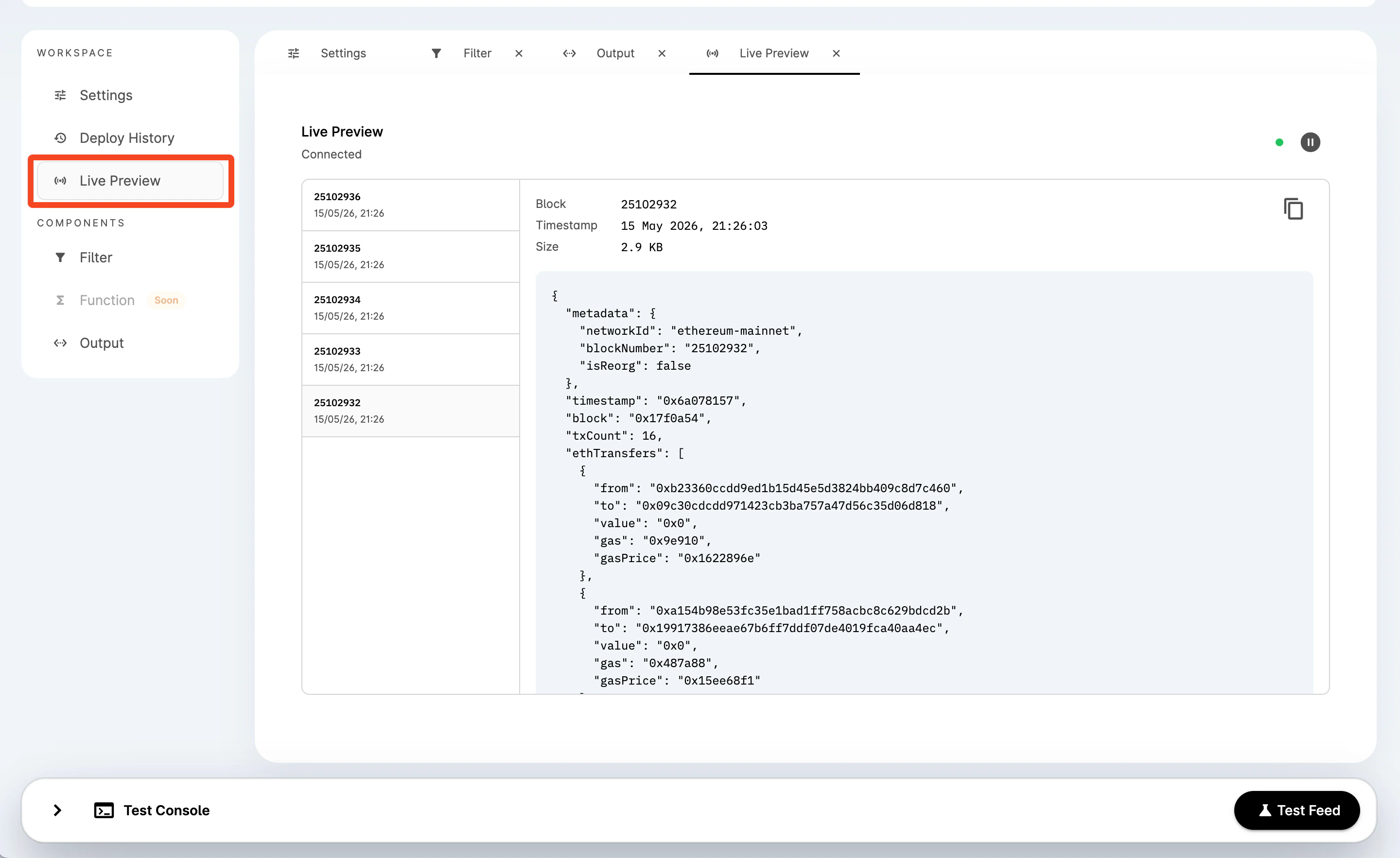
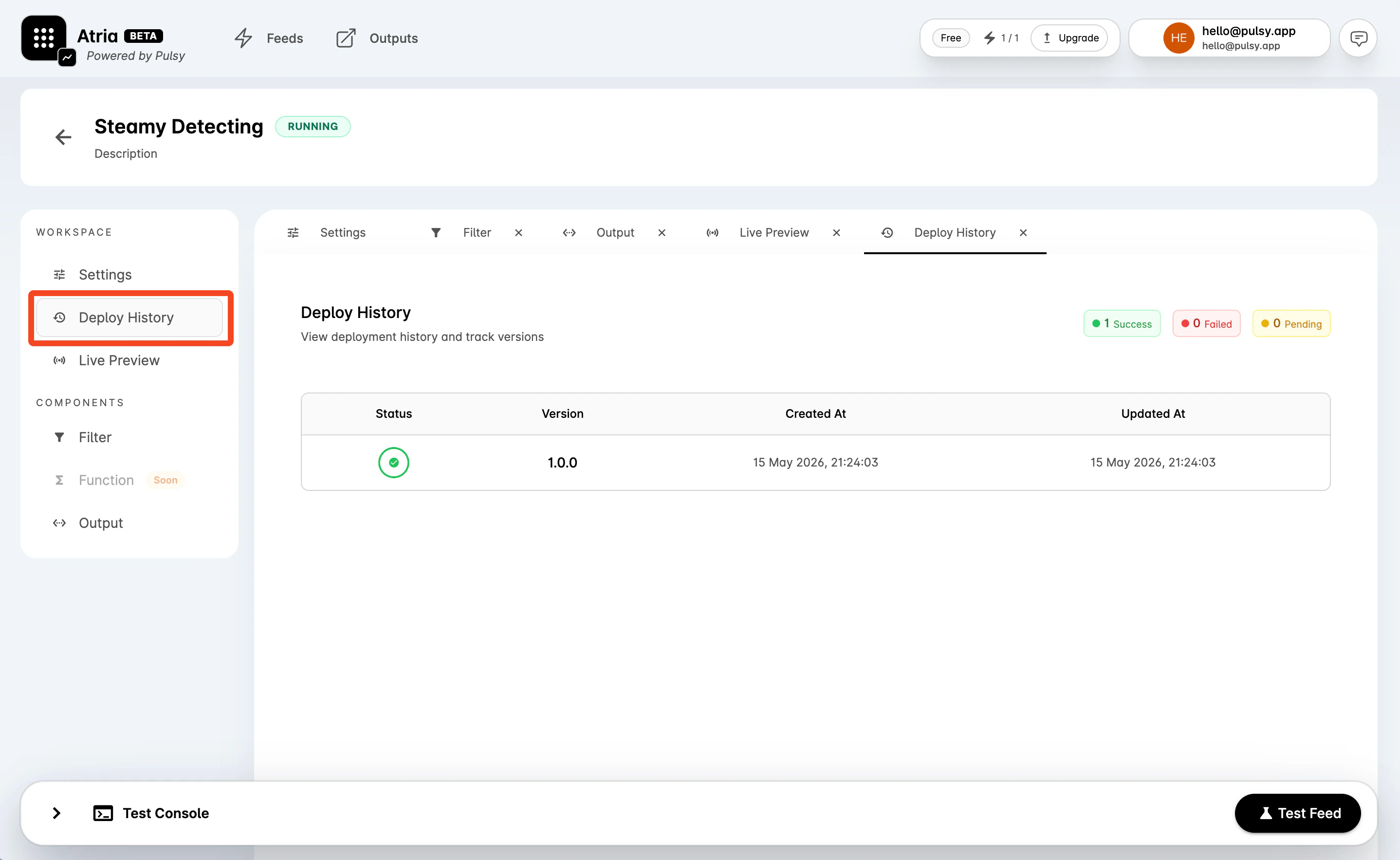
Review Deploy History
For an existing feed, open Deploy History to review deployment status, version, creation time, and update time.