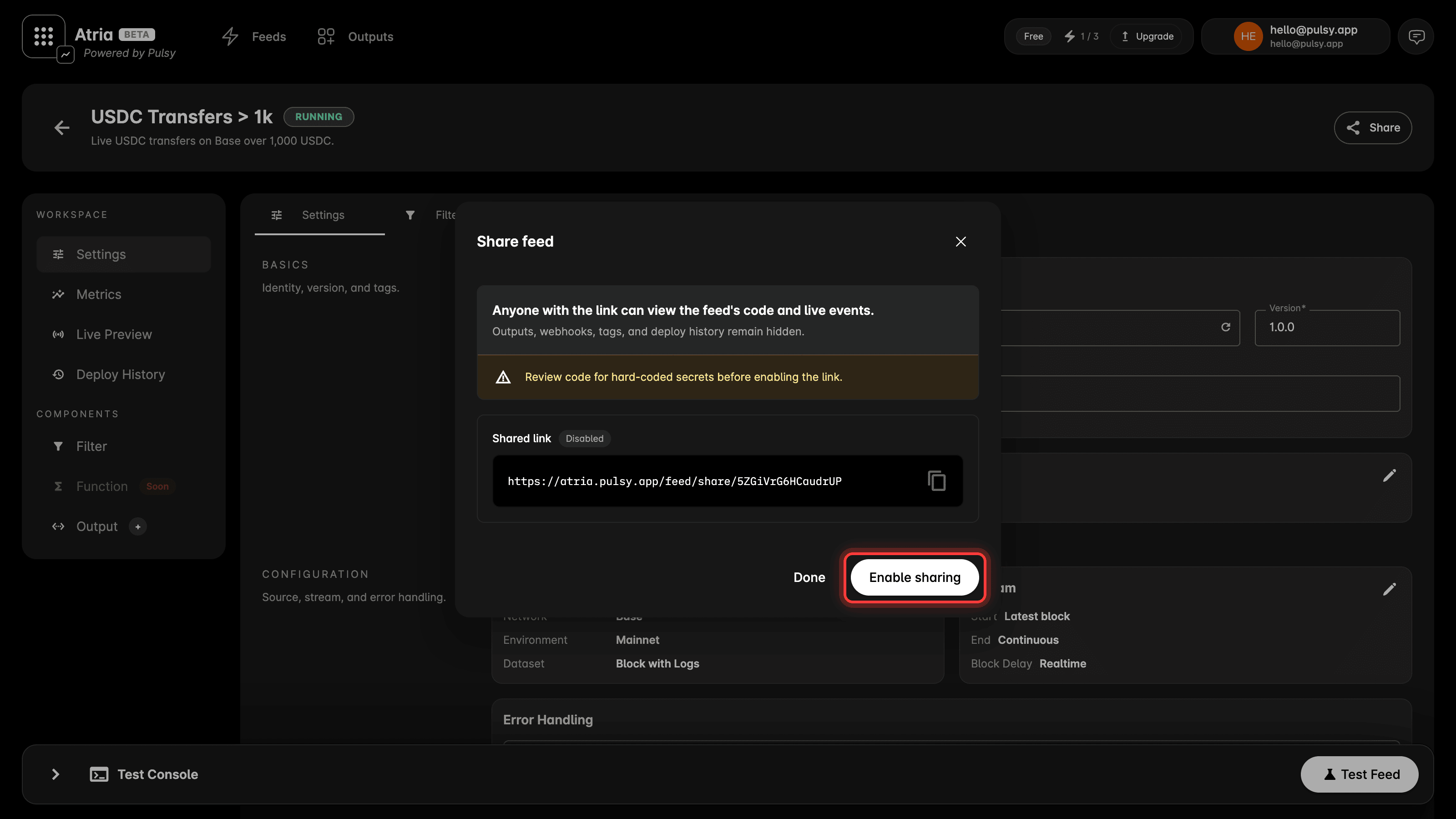
Open the feed and select Share in the feed header, then Enable sharing.You get a link in the form https://atria.pulsy.app/feed/share/<code>. Use the copy action next to it.Once sharing is on, the header button reads Shared via link.
A shared feed has a Use this data button. It copies the feed into the visitor’s own workspace as a new feed, with the settings and the filter code already in place.Outputs are not copied, because they are not part of what gets shared. The new feed opens on its output step so you can add your own before you test or deploy.The button also works for someone without an account. They are taken through sign up first, and the copied feed is waiting for them when they land.
A shared link renders a preview card when it is pasted somewhere that unfurls links, such as Slack or X. The card carries the feed name and its network.
Open Share again and select Turn off sharing. The link stops opening the feed.The link keeps its code, so turning sharing back on gives the same URL rather than a new one.